How to Play a CD on Your Android Phone
Android phones don’t have CD drives. Tablets don’t either. If you still have CDs and you want to hear one on the phone in your pocket, the usual advice is a computer: copy the album there, then move the files over.
There’s a simpler way. Plug a USB CD drive into the phone, insert the disc, and play it from the disc itself with Discs.
What You Need
- An Android phone, tablet, or Chromebook
- A USB CD drive
- A USB-C to USB-A adapter. An adapter with USB-PD power is recommended, so the drive can take power from a charger instead of running on the phone alone
- Discs (free on the Play Store)
If you already have a USB CD drive in a drawer, try that one. Most slim external drives work. If you need a drive, we generally recommend brand name drives, as many generics are repackaged used drives, and can be inconsistent.
Step-by-Step: Play the Disc
1. Connect the Drive
Plug the drive into your phone. Almost every USB CD drive is USB-A, so you’ll need the USB-C to USB-A adapter between the drive and the phone.
If the drive keeps dropping out, it’s usually starving for power. Use an adapter with USB-PD, plug a charger into the adapter, and then plug the drive in. The FAQ power section has more if you need it.
On a Chromebook, ChromeOS does not share the drive with Android apps until you turn that on in Settings. It takes about 30 seconds, and you only do it once. The Chromebook ripping guide covers that setting.
When Android asks which app should handle the drive, choose Discs.
2. Insert an Audio CD
Put the disc in. Discs should show the album.
3. Tap Play
Tap Play, or tap a track. That’s it.
The CD stays in the drive while it plays. Eject it, and the music stops. You’re just listening to the CD, like you would on a stereo.
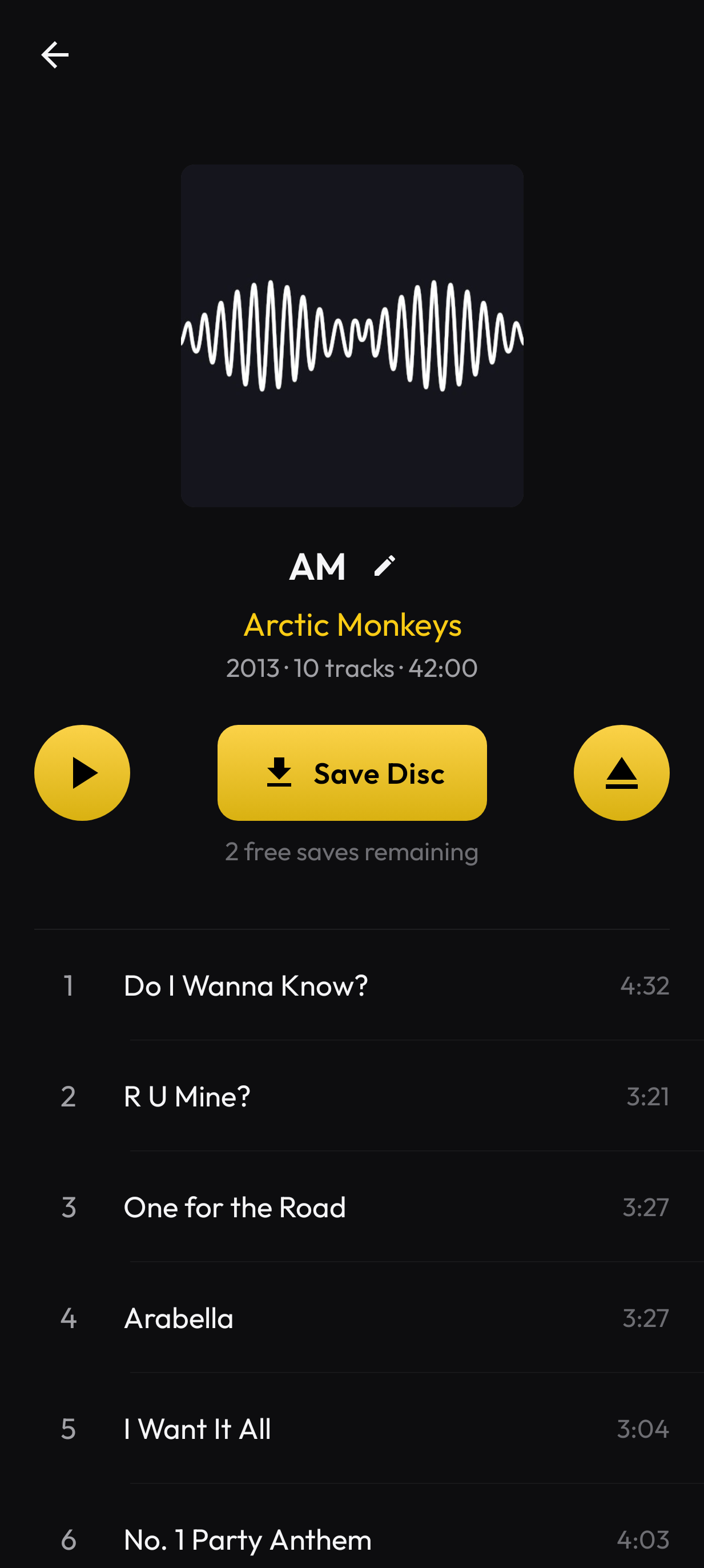
Play is the button on the left. You can also tap a track.
If available, you’ll be able to see track names and album art, this may take a moment. Otherwise, Discs will show Audio CD and Track 1, Track 2, and so on. Either way, you can play the disc immediately. Just like any good CD player, Now Playing has controls for seek, skip, shuffle, and repeat.
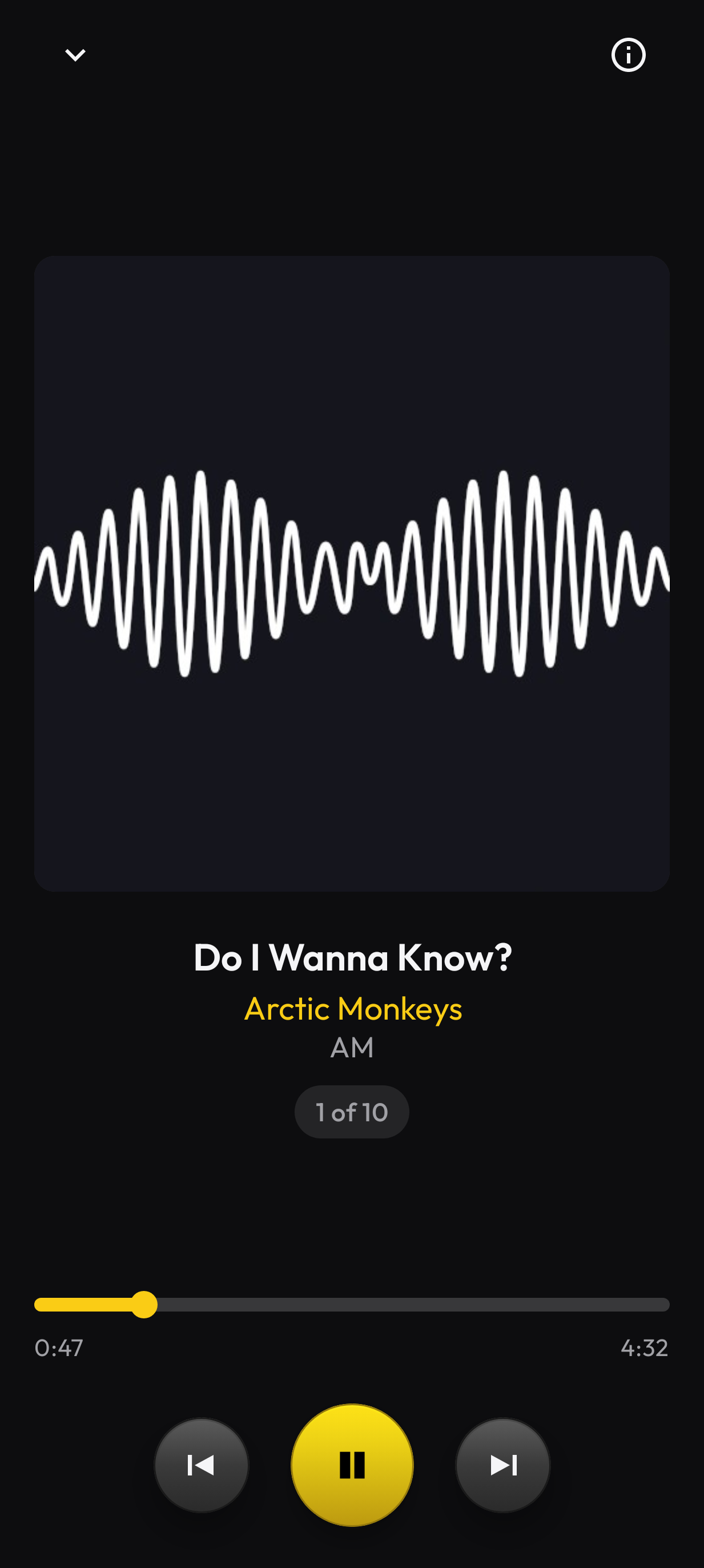
Now Playing, with the disc still in the drive.
What if you want to copy the album to your phone?
If you just want to hear the CD, playing from the drive is enough. When you eject it, you don’t keep a copy on the phone.
If you want to save a copy of the CD, tap Save Disc. Discs will save a copy of the album to your phone in its original CD quality (using FLAC), and will also attempt to verify and/or repair the copied files, to ensure a perfect copy if possible. For a full walthrough, see how to rip CDs on Android without a computer or on a Chromebook, use the Chromebook ripping guide.
You can listen to as many CDs as you want for free. You can also rip up to two CDs for free, to make sure your hardware is set up correctly. You can unlock unlimited ripping with a one-time purchase, that is good for a lifetime, and will work on any device logged into your Play Store account.
Get Started
Install Discs from the Play Store, plug in a drive, and put a disc in.