How to Rip CDs on Android Without a Computer
You’ve got a shelf full of CDs. Maybe a box in the closet, maybe a collection you’ve been building for years. You want that music on your Android phone, not streamed, not rented, actually yours. And you don’t want to drag a laptop into it.
You can transfer a CD to your phone without a computer by ripping it on the phone itself. Plug in a USB CD drive, open Discs, and save the album. No desktop software. Here’s how.
Transfer a CD to your phone without a computer
What You Need
- An Android phone with a USB-C port
- An external USB CD/DVD drive
- A USB-C adapter with power passthrough and a 15W+ charger (recommended)
- Discs, a CD ripper that talks to USB drives on Android (free on the Play Store)
No desktop software, no iTunes, no file transfers. Install the app, plug the drive into your phone, insert a disc, and rip.
You get two free rips. Use them to confirm your setup before you buy.
The App: Discs
Discs is a CD ripping and music library app built specifically for Android. It’s the part that makes this whole thing work. You plug in a USB CD drive, insert a disc, and Discs handles the rest; ripping the audio, pulling metadata and album art, and organizing everything into a library you can browse and play back.
Format Options
Discs rips to FLAC, AAC, and MP3. The default is FLAC: a bit-perfect copy of what’s on the disc, and the right choice if you care about quality. If you need smaller files, or you’re putting music on an older player, switch to AAC or MP3. Encoder settings are there if you want them.
If you’re going to do this, FLAC is worth it. Storage is cheap, and you only need to rip each disc once. Do it right the first time.
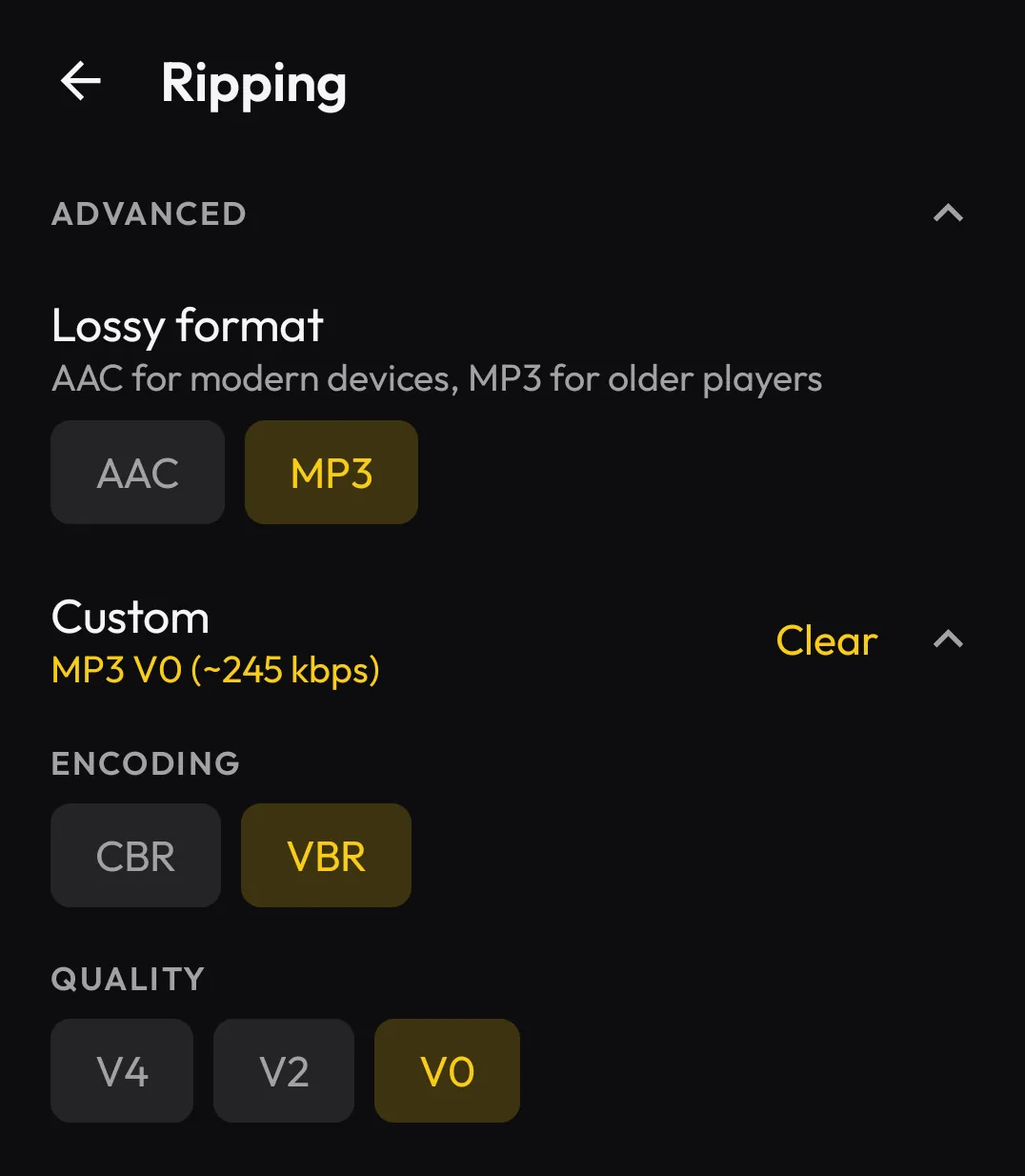
Step-by-Step: Rip a CD to Your Phone
1. Connect Your USB CD Drive
Plug your external CD drive into your phone. We recommend a USB-C adapter with power passthrough and a 15W or higher charger, so the drive gets power from the wall instead of running on the phone alone. The FAQ power section has more if you need it.
When you connect the drive, Android will ask which app should handle it. Choose Discs.
2. Insert a Disc
Drop your CD into the drive. Discs will detect it automatically, look up the album metadata (title, artist, track names, album art), and show you what it found.
3. (Optional) Choose Your Format
Pick FLAC, AAC, or MP3. The default is FLAC, and unless you have a reason to change it, that’s the one to use.
4. Hit Rip
Tap rip. Discs reads each track from the disc, encodes it in your chosen format, tags it with the correct metadata, and saves it to your phone’s storage.
A full album takes a few minutes depending on the disc length and your drive speed. You can watch the progress track by track.
5. Listen
Once it’s done, the album shows up in your Discs library. Browse by album or artist, hit play.
Discs supports gapless playback too, so live albums, concept records, and DJ mixes sound the way they’re supposed to, no gaps between tracks.
If you haven’t installed the app yet, get it here and use a free rip to test your hardware:
Download Discs from the Play Store →
Why Rip CDs to Your Phone Instead of a Computer?
The traditional CD ripping workflow looks like this: rip on a computer, organize the files, transfer them to your phone, hope your music player app picks them up. It works, but it’s a lot of steps for something that should be simple.
Ripping directly on your phone means:
- One device, one step. The music goes straight to the device you’ll listen on.
- No file management. Discs handles the organization: metadata, album art, folder structure.
- No computer needed. If you don’t have a desktop, or just don’t want to deal with one, you don’t have to.
What About Other CD Ripper Apps for Android?
If you’ve searched for this before, you might have found a couple of other options. Here’s the reality:
DISC LINK Platinum was one of the first apps to try this. It currently has a 2 out of 5 rating on the Play Store, and users report that it stopped working reliably on Android 13 and later. The reviews paint a consistent picture: connection issues, crashes, and no updates to address them.
Logitec CD Ripper (by the Japanese electronics company Logitec, not to be confused with Logitech) is another option that’s been around for a while, but it’s being discontinued: Android 15 is its last supported version, it leaves Google Play on September 30, 2026, and its Gracenote track lookup ends March 31, 2027. More on that here.
Discs is actively developed, works on current Android versions, and is built around doing one thing well.
What Kind of USB CD Drive Should You Buy?
Discs is designed to work with any optical drive. If you already have one sitting around, try it first.
If you’re buying, we recommend a brand-name unit. Those tend to be more reliable, and more consistent from one unit to the next, than no-name generics. A lot of cheap drives are old laptop mechanisms in a new enclosure.
Skip drives that need their own proprietary app. Pair it with a USB-C adapter that has power passthrough and a 15W+ charger. That’s the setup we recommend. The FAQ power section has more if you need it.
Beyond Ripping: The Discs Music Library
Discs isn’t just a ripper. It’s also the player. Your ripped music lives in a library you can browse by album or artist, with full album art, proper metadata, and gapless playback.
It also supports:
- Android Auto. Your ripped library shows up in your car, just like any other music app.
- Google Cast. Stream your local music to Chromecast and other Cast-enabled speakers.
- Playlists. Create and manage playlists, with M3U export support.
No subscription, no account, no internet connection required. Your music is just files on your phone.
Pricing
Discs lets you rip your first two albums for free, so you can test your phone and drive before paying. After that, it’s a one-time purchase for unlimited ripping. No subscription, no recurring fees. Pay once, rip everything.
Download Discs from the Play Store →
Own Your Music
Streaming is convenient, but it’s a rental. Albums disappear, catalogs shift, and if you stop paying, the music stops. CDs are yours, and getting them onto your phone is a USB drive and an app, not a computer.